
MiniMax, Stable Audio and ACE-Step: three ways into a song
MiniMax Music 3 and Stable Audio 3 Medium join ACE-Step in OpenStudio, with local generation, guided setup and more ways to work with the audio already in your session.
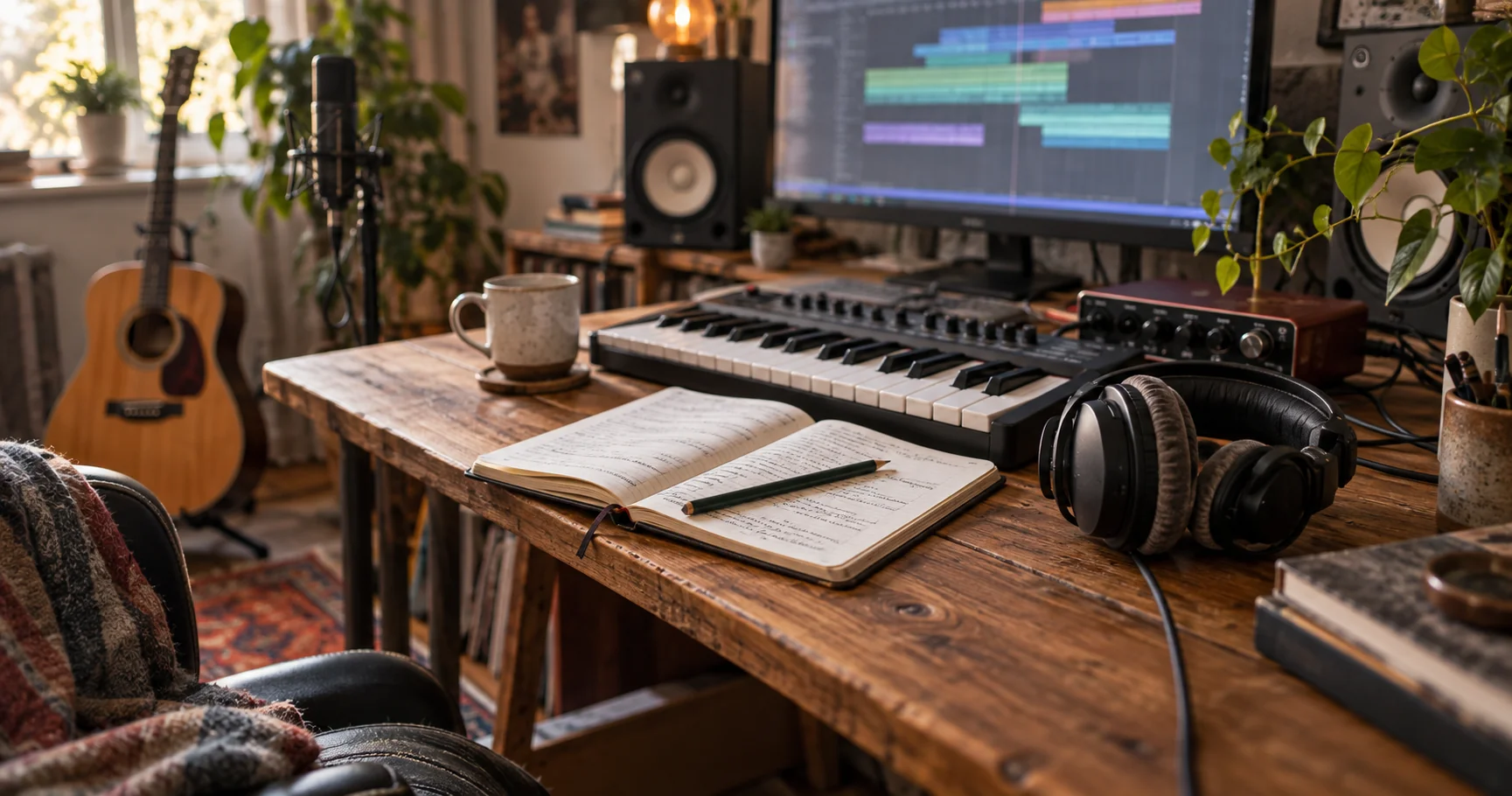
You have a verse, a guitar part and a fairly good idea of where the chorus should go. Hearing a few possible directions can be more useful than staring at the empty bars after it. That is the kind of session we had in mind while bringing two more generation models into OpenStudio.
Alongside the rebranding release, MiniMax Music 3 and Stable Audio 3 Medium join ACE-Step 1.5 XL Turbo in the app. You can work from a description, bring your own lyrics, lay out song sections, or ask for a new version of an existing clip. The available tools depend on the model you choose. Results come back into the project as audio you can edit and mix.
All three integrations use Hugging Face Diffusers. The models run locally after setup, and the large downloads are optional. You can keep using the DAW without installing any of them.
Which model should I reach for?
We wanted the model picker to answer a practical question: what are you trying to do with this piece of music?
| Model in OpenStudio | Start something new | Work with an existing clip |
|---|---|---|
| ACE-Step 1.5 XL Turbo | Text to Music; Lyrics + Style | Create Variation; Inpaint Selection; Continue Clip |
| MiniMax Music 3 | Lyrics + Style; Song Sections | Use ACE-Step or Stable Audio for these tools |
| Stable Audio 3 Medium | Text to Audio | Create Variation; Inpaint Selection; Continue Clip |
ACE-Step: a musical sketch, with room to revise
ACE-Step remains useful when you want to describe a musical direction and start trying arrangements. Its controls include lyrics, BPM, duration, time signature, language, key and scale, a seed, and diffusion settings.
An idea such as “a restrained rock verse with dry drums, a moving bass line and a much wider chorus” gives you something to react to. Once there is audio in the session, the clip tools let you explore a variation or work on a smaller passage. You can also feed those tools a recording you made yourself.
We use the ACE-Step 1.5 XL Turbo Diffusers checkpoint. If you followed the earlier integration, this builds on the move to Diffusers that was already part of OpenStudio.
MiniMax Music 3: give the song some shape
MiniMax is the addition for working from lyrics and a more developed song description. Lyrics + Style accepts your words with section tags such as [verse] and [chorus] on their own lines. Song Sections provides separate verse, chorus and optional bridge fields, plus vocal direction and arrangement notes.
That makes it easier to express an idea like a close, quiet vocal in the verse, harmonies in the chorus, and drums entering after the first section. The lyrics and the production direction have their own places in the form.
OpenStudio exposes a Maximum length of up to five minutes. It is a ceiling: the model can finish the song earlier. Longer requests also ask more of your hardware. Tempo, instrumentation and section instructions guide the generation; they are not exact arrangement commands. MiniMax's model card describes the same distinction.
Stable Audio 3 Medium: describe a sound, then work with it
Stable Audio adds Text to Audio, with a sound description, duration, seed and steps. You can describe an instrumental passage, a texture or a sound effect, then bring the result into an arrangement alongside your recordings.
It also supports all three source-audio tools. That is useful when you already like the character of a clip and want to explore what comes next, or replace a passage without generating an entirely new idea from text.
OpenStudio uses the distilled Medium model. Its default is eight steps, with guidance fixed for this workflow. More steps are not automatically an improvement, and the app does not expose negative-prompt, CFG or LoRA controls for this integration. The Stable Audio 3 Diffusers documentation explains why the distilled checkpoint needs different settings from the base model.
Three useful moves once you have a clip
Right-click an audio clip and open AI Generation to use ACE-Step or Stable Audio:
- Create Variation uses the clip as context for a related version. ACE-Step's Source Preservation and Stable Audio's Variation Amount have different meanings, so check the selected model's controls before turning either one up.
- Inpaint Selection generates a replacement for the time selection that overlaps the clip. Make the selection first. The result includes the surrounding clip, so you can compare the new passage in context.
- Continue Clip generates a tail from the source audio. Its Tail Length control describes the extension you are asking for.
Variation and inpainting create an aligned result on a new track, keeping the original available. A continuation tail is placed at the source clip's end, on the same track if there is room; if it would overlap another clip, it gets a new track. You can audition the result, cut the useful part, process it through your effects, and keep arranging.
A generated song is still audio. These models do not automatically turn it into separate vocal, drum and instrument tracks. OpenStudio's optional stem-separation tool is a separate step if you want to take a result apart.
Getting the models onto your machine
Open AI Tools Setup and choose the model you want. ACE-Step has guided installation. For MiniMax and Stable Audio, review the model terms and choose Download and Set Up. OpenStudio downloads the required files from Hugging Face, prepares the runtime and checks the model before making it active.
Stable Audio's original checkpoint needs conversion into Diffusers format. Setup handles that conversion, but it still needs time and extra disk space. Access to the Stable Audio model on Hugging Face must be approved, including the applicable Stability AI and Gemma terms. Use a read token from that account, or an existing Hugging Face login. Accepting the checkbox in OpenStudio does not grant access on Hugging Face.
MiniMax's public download does not require a token. A token entered into OpenStudio is used for that setup operation and is not saved by the app. Local model import remains available if you already have the files.
Downloads reuse completed cached files when you retry. A failed or cancelled setup leaves the previous installed model in place. Once setup is complete, generation uses the local model; your prompts and source audio are not uploaded to Hugging Face for inference. The AI setup guide covers the steps and troubleshooting in more detail.
What about a smaller, quantized MiniMax?
Update, 16 September 2026: development builds containing app commit 681fec8 now offer Original and INT8 model versions for all three models. In AI Tools Setup, Download and Prepare INT8 reuses installed original weights or downloads the official originals, then saves and verifies a separate quantized copy. This is a local preparation step, so the first download is not smaller. Prepared OpenStudio INT8 folders can also be imported. Older installed releases may not have these controls.
INT8 currently requires an NVIDIA CUDA GPU. It reduces the precision of MiniMax's language-model weights, or the diffusion-transformer weights in ACE-Step and Stable Audio; the other audio components keep their normal inference precision. The model picker remembers the selected version on the AI track, and Original and INT8 have separate installation status. There is no general-purpose INT4 or GGUF selector.
This makes MiniMax more practical on the configuration we checked, but it does not turn it into a tiny model. The app's qualification report records real generation with an RTX 4080, 16 GB VRAM and 32 GB system RAM. Long songs can still take many minutes, and MiniMax INT8 uses about 15 GiB of temporary disk cache for inactive stages. Those checks do not establish support for every smaller GPU or prove that quantized output sounds identical.
Quantization makes weights smaller; offloading controls where components live while they are needed. Moving data between storage, system RAM and the GPU takes time. Lower memory use is useful, but it does not guarantee faster generation. Other GPU backends and CPU-only systems should use Original, where the model's hardware checks allow it. The model-version setup guide covers the controls and installation details.
Use the app's Hardware check for the request you intend to run, and refresh it after closing other applications. It is an estimate, not a guarantee that every stage will fit. We are not claiming universal support for a particular small GPU. Hugging Face's memory optimization guide is a useful explanation of the underlying tradeoffs.
The parts that took engineering work
Getting a model to return a WAV is an early milestone. Making it behave inside a session means dealing with setup failures, memory pressure, cancellation and the exact bit of audio the musician selected.
Three pipelines need different treatment
Diffusers gives us implementations we can inspect and build around, but the models still have different structures. MiniMax combines sequential language-model generation with a diffusion stage and audio decoding. Its song length affects the growing generation cache as well as the final audio. Stable Audio has its own text encoder, scheduler and SAME audio autoencoder. ACE-Step retains its own managed runtime.
We had to make the app's controls, progress reporting and worker lifecycle follow those differences. MiniMax audio-frame progress and a denoising-step percentage describe particular stages. Loading and decoding may need an indeterminate indicator. A percentage invented from elapsed time would tell the musician very little about what was actually happening. The MiniMax Diffusers pipeline documentation shows how its stages fit together.
Long audio exposed a decoder bottleneck
One concrete problem appeared after Stable Audio had finished generating its compressed audio representation. In our long-form test, the decoder could become the part that failed to finish within the test window.
The pinned SAME implementation built large square attention masks inside blocks that only needed nearby context. We added bounded, overlapping processing windows for those blocks, with enough surrounding context to retain the unaffected center of each window. Preserving absolute positions and handling the edges correctly mattered as much as reducing memory use.
The regression checks cover window boundaries and numerical agreement against the original path. Those checks establish a narrower engineering result; listening is still necessary to judge a generated take. The relevant upstream implementation is Diffusers' SAME autoencoder.
Installation and recovery are part of using the instrument
Stable Audio's conversion also needed a fix for a Windows checkpoint-reader crash. MiniMax's download needed to select its Diffusers components without pulling down duplicate legacy weights. A partly prepared model must not replace a working installation.
During generation, memory recovery must preserve the request. The bounded out-of-memory retry for ACE-Step and Stable Audio keeps the user's settings rather than quietly shortening the job. Idle model caches are released after about two minutes, and active jobs survive closing and reopening the generation panel while the app remains running. Cancellation is explicit.
These details are less visible than the first successful song, but they matter on the second attempt, the interrupted download and the session where another application is already using half the GPU.
Thank you, Hugging Face and the Diffusers team
A special thank-you to Hugging Face and the Diffusers maintainers and contributors. The Hub's model distribution, the readable pipeline implementations, the documentation and the ongoing work on memory management made these integrations possible. Being able to trace a problem through the actual implementation has been especially valuable while bringing longer audio generation into a desktop app.
Thank you as well to the ACE-Step, MiniMax and Stability AI teams for the models and their technical work. OpenStudio builds on that effort, and we want the people using these tools to know where it comes from.
Try a short idea first. Give it a clear direction, listen to what came back, and keep the part that makes you want to carry on. The useful result might be a whole song, a better transition, or just a few seconds that suggest what to record next.