
Pitch editing
The graphical pitch editor, scale snapping, correction, and the real-time corrector.
OpenStudio has two ways to fix pitch. The graphical Pitch Editor analyses a monophonic audio clip, shows its notes, and lets you reshape them before an offline correction is rendered back into the clip. The built-in real-time pitch corrector is an FX-chain effect for live or immediate corrective work. This page covers both and was checked against the app’s editor and correction code. The upstream feature list provides additional background.
The detached-window behavior described here is development work from September 29 on app commit 52cbd7c plus uncommitted changes. It is not a claim about the current downloadable release or untested platforms.
In the October 4 development checkout, the Pitch Correct plugin opens this existing Edit Pitch session for a chosen eligible audio clip. It checks for active realtime correction along the playback route without silently bypassing effects. The compatible realtime processor offers Legacy Humanize and opt-in Sustained notes; graphical Apply remains a separate operation.
What the Pitch Editor is
Open the Pitch Editor for a selected audio clip. Use Detach to open its native window, Focus to bring it forward, or Dock to return it to the main window. Notes, selection, history and pitch zoom survive docking. Closing the native window retains committed edits for reopening the same clip. Pitch scrolling and zoom are independent of the arrangement, and committed edits share the project Undo history. The clip is analysed with a monophonic YIN pitch tracker and segmented into notes. Each note appears as a blob on a piano grid, with the detected pitch contour drawn through it, so you can see at a glance which notes sit on a grid line and which drift sharp or flat. The view zooms and scrolls so a long phrase and a single note are both workable.
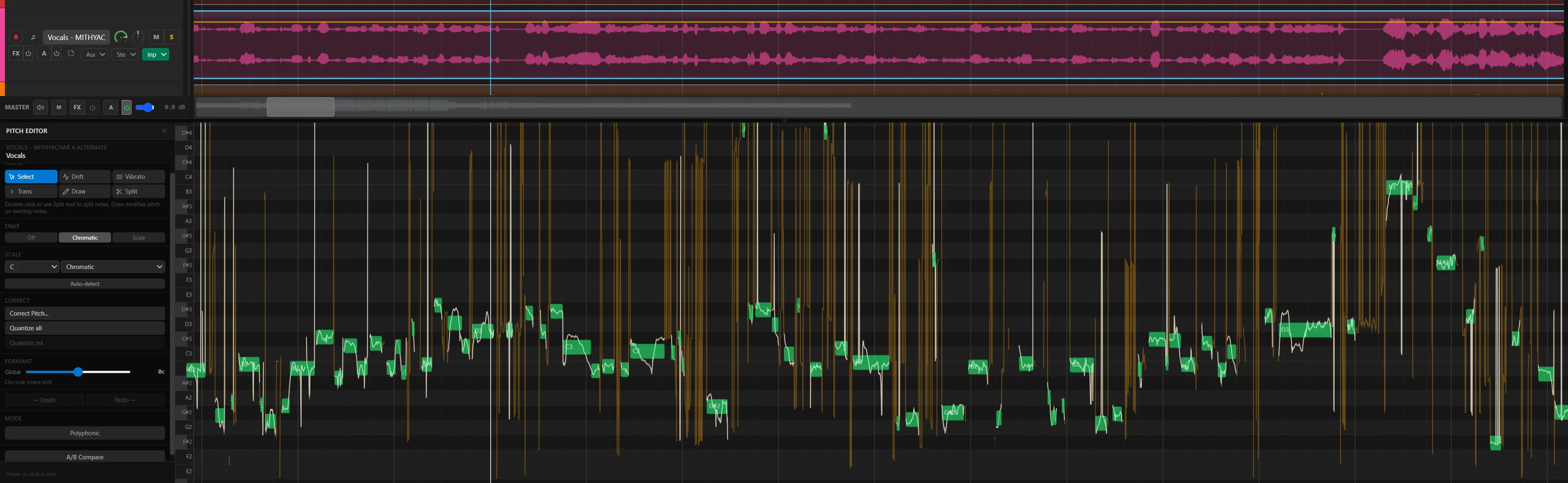
This is different from the clip-level pitch shift in the arrangement, which transposes a whole clip and, like time stretch, uses FFmpeg on macOS and Linux. The Pitch Editor works note by note. It is also separate from hosting a third-party pitch editor over ARA; see Plugins & scanning for that path.
The tools
Six tools cover note selection and movement, contour edits, and splitting.
| Tool | What it changes |
|---|---|
| Select | Selects notes; dragging vertically changes their centre pitch. |
| Drift | The slow pitch movement within a note, without touching its centre. |
| Vibrato | The amount of periodic pitch movement within a note. |
| Trans | How one note moves into the next: the shape and speed of the slide between them. |
| Draw | Freehand editing of the contour itself. |
| Split | Divides one detected note into two, for when segmentation merged two pitches or a phrase needs a cut. |
Undo and redo cover every edit in the editor, and the editor keeps an A/B comparison state so you can flip between the analysed original and your edited version by ear as you edit. Keyboard bindings for the editor have their own Pitch Editor scope in Help → Keyboard, Mouse & Trackpad, so a key that works on the timeline may do something else here.
Scale, key, and snapping
Set the key and scale, and dragged notes snap to scale degrees. Switch to chromatic snap to allow every semitone. The correct-pitch macro applies a correction to every selected note at once, pulling each blob to its nearest snap target, which is the fastest way to tidy a take before you go back and adjust individual notes by hand. Scale detection reads the analysed material and proposes a key and scale, so you do not have to know the key in advance.
A note snapped exactly to its centre is not always the musical answer. Snap first, then use Drift, Vibrato, and Transition to give the corrected notes back some movement.
Preview, HQ render, and apply
While you edit, the editor previews the corrected result so you can hear an edit without a full render; scrub preview lets you hear a position under the cursor. Preview is the quick path. For an accurate check, the editor renders in HQ, either a single note or the full clip, and shows which state it is in so you know whether you are hearing the preview engine or the render.
- Analyse the clip and confirm the notes are segmented the way you expect. Use Split where two notes were merged.
- Choose a key and scale, or accept the detected one, and run the correct-pitch macro if the take needs broad tidying.
- Adjust individual notes with the Select, Drift, Vibrato, and Trans tools, previewing as you go.
- Compare against the original with A/B at a matched level.
- Wait for the automatic correction render to finish, then audition the updated clip on the timeline.
Edits schedule correction automatically; there is no separate Apply button in this editor. Watch the status message while preview and HQ renders update the clip.
The real-time pitch corrector
For live use, or when you want correction to follow whatever is on the track without rendering, add the built-in real-time pitch corrector to the track's FX chain like any other built-in effect (click FX on the track header, then add it from the built-in list). It works in the auto-tune style: the incoming signal is tracked and pulled toward the nearest scale note as it plays. It has the same bypass, preset, and chain-order behaviour as the other built-in effects described in Mixing & routing.
Use the corrector when you need a result now or the vocal is still being tracked. Use the Pitch Editor when the performance is the final take and you want to decide each note yourself.
What it does not do yet
The Pitch Editor's correction path is monophonic: one voice at a time. Polyphonic pitch detection and MIDI extraction exist through Basic Pitch, but polyphonic pitch correction and solo-note resynthesis are not shipped; the upstream feature list marks that component as still stub-like. Chords, double-tracked vocals, and full mixes are outside its scope.
Polyphonic detection is what drives Audio to MIDI, which creates an adjacent MIDI track from an audio clip with undo support. Basic Pitch inference only runs in ONNX-enabled builds, which today means the Windows and Linux release pipelines. The macOS release bundles the model file but does not provision ONNX Runtime, so audio-to-MIDI is unavailable there. See AI Tools setup for the platform notes and MIDI & piano roll for what to do with the extracted notes.
Upstream is explicit that pitch, formant, and correction quality are judged by listening, not automated diagnostics. Audition the exact build on your material and report artefacts with a short clip attached.