
Plugins & scanning
Formats, scan paths, FX chains, presets, ARA2, and what to do when a plugin will not show up.
Every track has FX chains, the chains hold built-in effects and third-party plugins, and the plugins come from a scan of the standard directories on your machine. This page covers all three, plus presets, bypass, safe mode, and what to do when a plugin refuses to appear or behave. Shortcuts are from the default OpenStudio keyboard profile; Ctrl is Cmd on macOS.
FX chain positions
| Chain | Where it sits | Typical use |
|---|---|---|
| Input FX | Before the track fader | Input conditioning: EQ, compression, gating |
| Track FX | Before the track fader | Standard insert effects |
| Master FX | On the master bus output | Mastering chain |
A monitoring FX chain also exists. To open a chain, click the FX button on a track header or channel strip; the FX Chain panel shows the current chain, and a chain type selector switches between Input FX and Track FX. The master chain opens from the FX button on the Master strip. Chain presets can be saved and loaded for track, input, and master chains.
Built-in effects
Unreleased development changes reviewed October 24, 2026 at app commit 1b5ba4b7: EQ, Preamp, Saturator, Chorus, realtime Pitch Correct and the four instruments add Plugin options > Signal path > Legacy / Corrected. New instances use Corrected; older states retain Legacy. The saved choice participates in Undo and Compare. Change it while stopped because processing history resets. The repairs address EQ headroom, Foldback symmetry, Custom note mapping and low-note tracking, fractional oscillator/modulation phases, reference-rate tone, Preamp bypass and Saturator transitions. Drum All Notes Off preserves decays and export tails include previously omitted signal history. Articulated Drums disables Kit and Hi-hat Tightness, which apply to the Legacy voice engine. Corrected pitch tracking uses a longer observation window for low notes; high-rate, small-buffer deadline misses remain, especially with multiple instances. This does not change NAM Rack or certify listening quality or device performance.
Built-in processors carry the OpenStudio prefix and are independently insertable and reorderable. Choose an effect in the FX browser, then open its editor from the chain. NAM Rack has its own editor and setup guide.
The non-NAM editors described here were reviewed October 24, 2026 at app commit 1b5ba4b7. Compact pages prioritize main controls, while wide overviews expose existing detail controls. Pitch Correct retains realtime settings and the existing recorded-clip Edit Pitch session. Qualification is in progress; these changes are unreleased. The engineering article explains the research and implementation; its test results are dated evidence, not commercial sound-equivalence claims.
| Processor | Main use |
|---|---|
| EQ / Graphic EQ | 24-band parametric editing and dynamics, or independent 10/31-band graphic banks |
| Compressor / Gate / Limiter | Compression characters, keyed gating/expansion and output limiting |
| Preamp / Saturator / Gain Phase | Tone and drive, nonlinear colour, or timing/polarity/phase alignment |
| Reverb / Delay / Chorus | 41 reverb types including convolution; stereo delay; chorus/flanger/phaser |
| Basic Synth / Piano / Clean Guitar / Drums | Four synthesized instruments requiring no sample packs |
| Pitch Correct | Existing graphical clip editor entry and compatible realtime correction settings |
Controls, presets and history
Drag a knob vertically, hold Shift for fine adjustment, double-click to reset, or type a value and press Enter. Escape cancels typed entry. Keyboard and wheel behavior follow the active input profile. One continuous gesture creates one editor Undo step. Detail pages show controls relevant to the selected engine; hidden engine settings remain saved.
The shared toolbar provides Find, presets, Undo/Redo, complete-state A/B and Host bypass. The copy button follows the active slot: A to B or B to A. Comparison slots last for the editor session. Plugin options imports/exports complete .ospreset files and rejects files for another processor type. Complete state includes family memories, MIDI maps and embedded IR data. Presets and Compare can restore the processor's own bypass setting; clear it in Plugin options if needed. Host bypass belongs to the FX slot and has separate history. Editors follow their instance through reordering and reject writes to removed instances.
Find searches canonical native parameter names and named workflows such as Matrix, Drum map, EQ Match and Response. Choosing a result opens its page and focuses the control or entry point. It preserves the current model and sound; inactive results explain that the stored setting remains available in its applicable configuration. Compatibility aliases and saved machine-memory entries are not duplicate controls. Inactive controls retain their values, with explanations for such cases as Articulated Drums Kit/Hi-hat Tightness and Limiter Classic/Edge timing.
Compact instrument pages separate Synth oscillators/filter/amplifier and matrix/LFO/macros, Piano touch/pedals, Guitar sound/articulation/performance and Drums pads/selected piece/character. Output and audition controls remain outside the scrolling body. A wide, tall host adds Overview with existing sections together; individual pages remain available and dense details can scroll. Reducing the host returns an active Overview to the main page. Large Reverb windows expose additional machine sections and manually requested Response analysis. Layout follows available window size, including display scaling, rather than the monitor resolution. The suite's 640x480 native minimum is the outer window; its frame and title bar reduce the client area available to controls.
Parametric and graphic EQ
The standalone EQ has 24 bands, per-band Stereo/L/R/Mid/Side targets, extended cuts and tilt shapes. Select a band in the graph for its applicable frequency, gain, Q and dynamics controls. The default first/last bands are disabled HPF/LPF filters; their power buttons enable them. Dragging a cutoff handle changes frequency without changing gain. The embedded channel-strip EQ retains its separate eight-band scope.
Choose Minimum, Linear or Minimum FIR processing above the graph. Ordinary band dynamics, opt-in Linear band dynamics and Spectral dynamics are distinct paths. Dynamics supports internal/external detector choices where applicable. Phase changes preserve supported active dynamics through a prepared transition. Processing changes can alter latency; the host aligns dry/wet and bypass accordingly.
Use Group for linked selections and relative frequency/gain/Q offsets, or the selected-band menu for Copy, Duplicate, Reset and Remove. Draw and Match can audition a proposal before Apply; Cancel restores the saved sound. Match learns a current output and a reference from another EQ or an audio file. Saved spectrum references live on this device/browser profile and are separate from projects and presets. Grab freezes a spectrum for peak editing. Display controls resolution, source, range, tilt, Hold and Pause without changing audio.
Instances opens another running EQ or a paged graph overview. References overlays spectra from up to two other instances. Files & startup in the preset library manages complete state and startup choices. MIDI programs stores up to 32 bank/program settings; edit the map while transport is stopped. Mixed processing configurations are prepared before recall, reserve the bank's largest latency and warm/crossfade the incoming setting. Disable recall before manually changing processing configuration; a MIDI target change does not make that audible transition instantaneous.
Graphic EQ keeps separate 10-band and 31-band banks, with grouped gestures, relative offsets, cuts and channel targets. Wide windows expose the full bank; compact windows page through frequencies. Flat bank resets the active bank; Reset selected resets only its selected bands in one grouped edit. The graph and analyzer are native data, not a simulated response.
Dynamics and colour
Compressor provides Clean/Legacy, FET, two opto and two VCA profiles with contextual timing, detector and channel controls. Its meter can show gain reduction or input/output average; these digital displays are not calibrated hardware meters. Gate offers filtered internal/external keys, detector audition and envelope shaping. New standalone Gate instances use Transient response: Peak/Auto rise is immediate before Attack in Gate mode, while RMS integrates and Expansion keeps its continuous response. Old state and NAM retain Legacy. There is no lookahead guarantee for instantaneous pulses.
Limiter offers eight original responses, audio oversampling, aligned bypass and reconstructed-peak/loudness history. Oversampling is a processing choice, not proof of a ceiling for every possible signal. Export dither and effective bit depth are separate final-output settings in Rendering and export. Saturator provides original drive voices, mix and estimated compensation; judge the level-matched result by listening.
Compressor and Preamp offer Audio stages > Original stages as an opt-in character. Legacy remains the default for new and older state. Original uses separate level- and history-dependent input/output stages with prepared 16x FIR processing. In Compressor they surround gain reduction; Clean/Legacy models stay linear. In Preamp, input colour precedes Tone EQ, Output drive follows it, and Output trim is linear. Headroom and Output drive are distinct controls. Character changes have complete-state Undo and declared latency: 78 filter samples for Original Preamp; 1038 total samples for Original Compressor at 48 kHz, including its 20 ms path. Original uses more CPU than Legacy. Aggressive combined settings can alias; commercial circuit fidelity and listening acceptance remain open.
Reverb, delay and modulation
Reverb offers 41 types across studio, vintage, plate/modal, spring, shimmer, nonlinear, spatial, ambient and convolution families. Start with Type, decay/space and mix, then open the contextual detail pages. Per-type memories retain settings when switching. Send/mix lock supports return-track use. Hold is engine-specific: Infinite may accept new excitation while Freeze rejects it; some topology changes wait for Hold to release. Supported wet-tail spillover preserves draining tails with bounded retirement.
The development version reviewed at app commit 1b5ba4b7 adds an Output control to standalone OpenStudio Reverb, from -60 to +12 dB with a 0 dB default. It scales the final wet/dry mix, ducking and retained tails, including convolution cross outputs, and remains editable in Send mode. Changing reverb types preserves Output; projects, presets, Compare, portable preset files and editor Undo retain it. Older states restore 0 dB. Lock balance still protects the saved wet/dry routing fields; presets can recall their own Output value. This is unshipped source-checkout behavior.
All 41 types also show Return level: Original / Calibrated on Setup. Calibrated applies fixed wet-return trims to current algorithmic voices; the compatibility Legacy Room/Hall/Chamber/Plate engines and custom IRs retain their levels. Both Legacy and Dispersive Spring receive calibration. Wet, Dry and Output stay independent. Return level is separate from Processing: Original / Refined: Original processing can use a Calibrated return. This shared choice remains editable in Send mode and is stored in projects, presets, Compare and portable files, with editor Undo/Redo. New instances and factory reset choose Calibrated. Older states without the choice restore Original and preserve their previous return level. The fixed trims do not guarantee equal perceived loudness across settings or material; Vowel hall remains particularly source-dependent. This is unshipped source-checkout behavior requiring audition.
The development version reviewed at app commit 1b5ba4b7 adds Controls: Legacy / Corrected, now on Setup. Corrected smooths dedicated-engine Wet/Dry changes over 20 ms, bounds Spatial modulation by each delay, and preserves 48 kHz damping time constants across sample rates in Studio/Plate Legacy tone, Clear and Shimmer/Nonlinear. Explicit tone bypass and intentional Vintage/Retro era conversion remain available. New standalone instances, factory reset and Voiced presets select Corrected; older states without the field and historical presets retain Legacy. State, Compare, portable presets and Undo retain this choice. NAM Rack is unchanged. Legacy-engine Early remains independent of Wet. The new Voiced Shimmer preset uses Input routing to retain the long base tank, with octave/fifth pitch applied once before the tank; Tank/Both remain available for shorter recirculating pitch tails. Both requires both pitch stages; the October 12 development follow-up lets Spread/Input suspend the unused tank pitch bank. The 41 individual Voiced presets use fixed Output trims from 0 to -13 dB, targeting about 3 dB of sample-peak headroom on the reference guitar at Dry 70% / Wet 100% (input peak -1.09 dBFS). The all-bank collection shares one -14 dB Output trim. These trims scale both dry and wet and require normal gain staging for other material or Hold. Original/Calibrated return gains and saved levels are preserved. Measured qualification does not establish listening quality.
In Plugin options, Load voice preset recalls the selected type's complete voiced preset; Load voiced collection installs all authored banks. Both replace settings with Undo available; normal type browsing keeps edits. Shaped reflections shows Duration in milliseconds (25-2000 ms), while automation retains its normalized value. Shimmer Amount resets to the bank's 50% default. Contextual help explains era filter limits, Bloom Length becoming inactive at zero Diffusion, and the tonal changes from Refined processing.
The development Preset dropdown offers Factory - Voiced <type name> for all 41 types and Factory - Voiced collection, which installs the authored profiles into every type memory for browsing. Profiles vary timing, tone, density and family controls. Collection Width, Wet, Dry, Output and Processing remain shared; it uses common width/balance and Refined processing. The eight earlier factory voices retain their settings. Recall applies complete state as one undoable change. Constructor defaults and older projects retain their settings. Save a new name or export to keep edits. Generated entries cannot be overwritten/deleted; an existing user preset of the same name takes priority. Lock balance retains routing fields, while Output, Return level and other character choices follow the voice. Listening and loudness matching remain unqualified.
Spectral Shimmer adds Pitch scheduling: Original / Spread. The October 12 working-tree follow-up divides Spread FFT stages more finely and primes live scheduling changes incrementally, retaining the 120 ms analysis window and 30 ms hop. Spread/Input suspends unused tank pitch work. Switching back to Tank/Both refills current history for about 300 ms before the 50 ms route fade, with Input audible during warmup. Original-only routing retains its prior behavior. Spread distributes spectral work and staggers tank/input pitch roles, adding one 30 ms hop to the pitched path while dry timing stays unchanged. It is a saved choice independent of Refined. A live switch warms the prepared alternate bank before a 20 ms fade and temporarily runs both banks; only the active bank runs afterward. New instances and older missing-field states use Original; Voiced Shimmer and the collection select Spread. Prepared memory increases. Local 48 kHz/128-sample timings improved synchronized bursts, but some eight-copy cases and live switches still exceeded their block deadline. Both still processes both pitch stages; Spread does not guarantee device performance; qualify high instance counts and high sample rates on your setup.
Vowel hall adds Broadband body, a wet bed beneath its narrow resonances, bypassing formants while retaining common cuts and Width for material with little formant-frequency energy. Zero preserves the formant-only response; dry audio and feedback remain unchanged. The saved control ramps over 20 ms. New instances and older missing-field states use zero; Voiced Vowel and the collection add body. Tonal balance changes, with no guarantee of perceived loudness on every source.
Hold headroom in development: Infinite keeps admitting new input; Freeze stops new held excitation. Earlier continuing-input tests reached safety clamps, especially maximum Nonlinear with a Calibrated return. The October 22 implementation adds smooth buildup handling to Nonlinear, Dispersive Spring and Rising while preserving those distinct input policies. All 16 bounded headroom fixtures pass on the final local Release build without final safety-clamp hits. Indefinite stability, every possible input and listening acceptance remain unasserted. Reduce incoming level or excitation duration when needed; Wet or Output attenuation lowers the final level but cannot restore an already saturated tank. Calibration changes wet readout gain, not feedback. This is unshipped source-checkout behavior.
Applicable engines also show Processing: Original / Refined on Character. Original remains the default, including older states that lack the saved choice. Refined adds short signed wet-output diffusion to Studio Plate and Cloud field and selects settled integer tank taps when motion is off in Drifting, Clear and supported digital spaces. Legacy/Modal Plate and Shaped reflections retain their processing. The choice is shared across types, retained by projects, presets, Compare and portable files, and supports editor Undo/Redo. Bright short plate, Modulated cloud and Grand gallery factory voices explicitly choose Refined. This unshipped opt-in behavior is not listening or loudness qualified.
For Convolution, import a mono, stereo or four-path IR. Preparation reports progress and can be cancelled; a failed/cancelled preparation leaves the previous applied response usable. Apply/Revert separates source/shaping edits from the active sound. Original IR bytes travel in complete state. Shaping, source blend, synthetic tail enhancement, wet EQ/modulation and isolated audition are available in their detail pages. Declared room geometry and diagnostic decay plots are not measured venue reconstruction or certified acoustics.
With a four-channel IR, Balance > Output layout > Four outputs splits diagonal paths to Main 1/2 and cross paths to auxiliary 3/4. Route the auxiliary pair through a track send; adding the pairs recovers the stereo matrix before independent destination processing. This is a matrix-path split, not arbitrary surround. Mono/stereo IRs keep stereo-sum behavior. The four-path channel-order selector remains separate.
Delay separates Digital, Tape, Analog, Multi and Dual modes from left/right timing and sync. Effective milliseconds and host/fallback/retained tempo status come from the processor. Motion, tone/colour, ducking, diffusion and routing live on contextual pages. Diffusion currently adds span after the repeat; pitch, reverse and frequency-shift delay families are not implemented. Chorus switches between Chorus, Flanger and Phaser with applicable voices/stages, waveform, sync, feedback and tone. Ensemble reports its effective minimum voices and cutoff; inactive settings remain saved.
Gain, polarity and alignment
Gain Phase combines manual fractional timing, polarity, all-pass and saved spectral FIR with Align tracks. Capture a group of two to eight instances, review a proposal, audition it, then Apply with whole-group Undo. Short/fixed captures use declared sparse windows. To-project-end continuously analyzes the selected span for up to 30 minutes through a bounded queue. Changed routes, sources or latency and missing coverage invalidate Apply. A confidence threshold is a heuristic, not an acoustic correctness probability.
Synthesized instruments and audition
Basic Synth includes two selectable oscillators, sub/noise, filter/amplitude envelopes, shared or per-note LFO, an eight-route Matrix and four CC-learn macros. Matrix pages retain all routes. MPE lower/upper zones and member/master bend ranges are opt-in; keep track MIDI channel on All for member-channel expression. Live controller targets are shown separately from saved base knobs. Presets save mappings and base values, not transient performance positions.
Piano and Clean Guitar provide expressive releases and pedals, with optional coupled-body resonance. Guitar adds a Plucked loop engine, pick/pickup position, damping, palm mute and nine articulations/keyswitches. Play > Performance shows actual native string allocations, latched articulation and held/pedal/releasing roles, plus next-note overrides. Note labels precede bend/slide and resonance tails are separate. Finished voices disappear; unavailable feedback is explicit.
Drums has sixteen audition pads and eight shared piece inspectors. Select a pad or Drum piece to edit level, tuning, pan, voice/articulation and output. The 128-note map can redirect incoming MIDI or Ignore it; pad names reflect the effective mapping. Articulated voices and choke behavior are synthesized, with Legacy retained for older state. These instruments require no sample library.
Hold an audition key/pad with the pointer or Enter; release it to stop. Space follows the transport shortcut profile. Audition uses an isolated voice outside recording/export, follows instrument controls and releases owned notes on cancel, blur, hide, close or heartbeat loss. Input-key/pedal feedback is separate from sounding voices. Export reserves rate-aware finite release tails and releases sustain/sostenuto at content end; intentionally infinite sounds still need a chosen export length.
Routing individual drum outputs
Drums > Kit > Selected piece > Output, or the Outputs page, assigns each piece exclusively to Main 1/2 or one of eight auxiliary stereo pairs, 3/4 through 17/18. In Track routing, create a send to a destination track and select matching Source channels. Add effects or render a stem on that destination. An unassigned pair is silent. Following stereo effects process the main pair while retaining auxiliaries; send pre/post-fader choices apply to the selected pair. Old states restore every piece to Main 1/2.
Projects, full state, Compare and Undo retain output routing. Isolated pad/keyboard audition folds its clone to stereo without changing the saved route. Stereo Freeze rejects tracks with enabled auxiliary sends; render destination buses as stems instead. Complete send restoration publishes the intended channels, gain and enabled state together. General bus and send workflows are in Mixing and routing.
Pitch correction
Pitch Correct opens the existing Edit Pitch session for a chosen eligible audio clip. It checks for active realtime correction on the playback route without silently bypassing effects. The compatible realtime processor keeps Legacy Humanize and adds opt-in Sustained notes. Graphical Apply and realtime correction are different operations; there is no second pitch canvas or duplicated graphical Humanize control. See Pitch editing for source selection, editing and docked/detached operation.
Formats and scan paths
OpenStudio hosts 64-bit plugins for effects and virtual instruments. VST3 is the stable, most mature path. CLAP and LV2 code paths are present and exposed where the format is available, but individual plugin compatibility varies more than it does for VST3.
Open the FX Chain panel or the Plugin Browser and click Scan. The standard directories are scanned and the results are grouped by manufacturer and category, filterable by name.
~/Library/Audio/Plug-Ins/VST3C:\Program Files\Common Files\VST3/usr/lib/lv2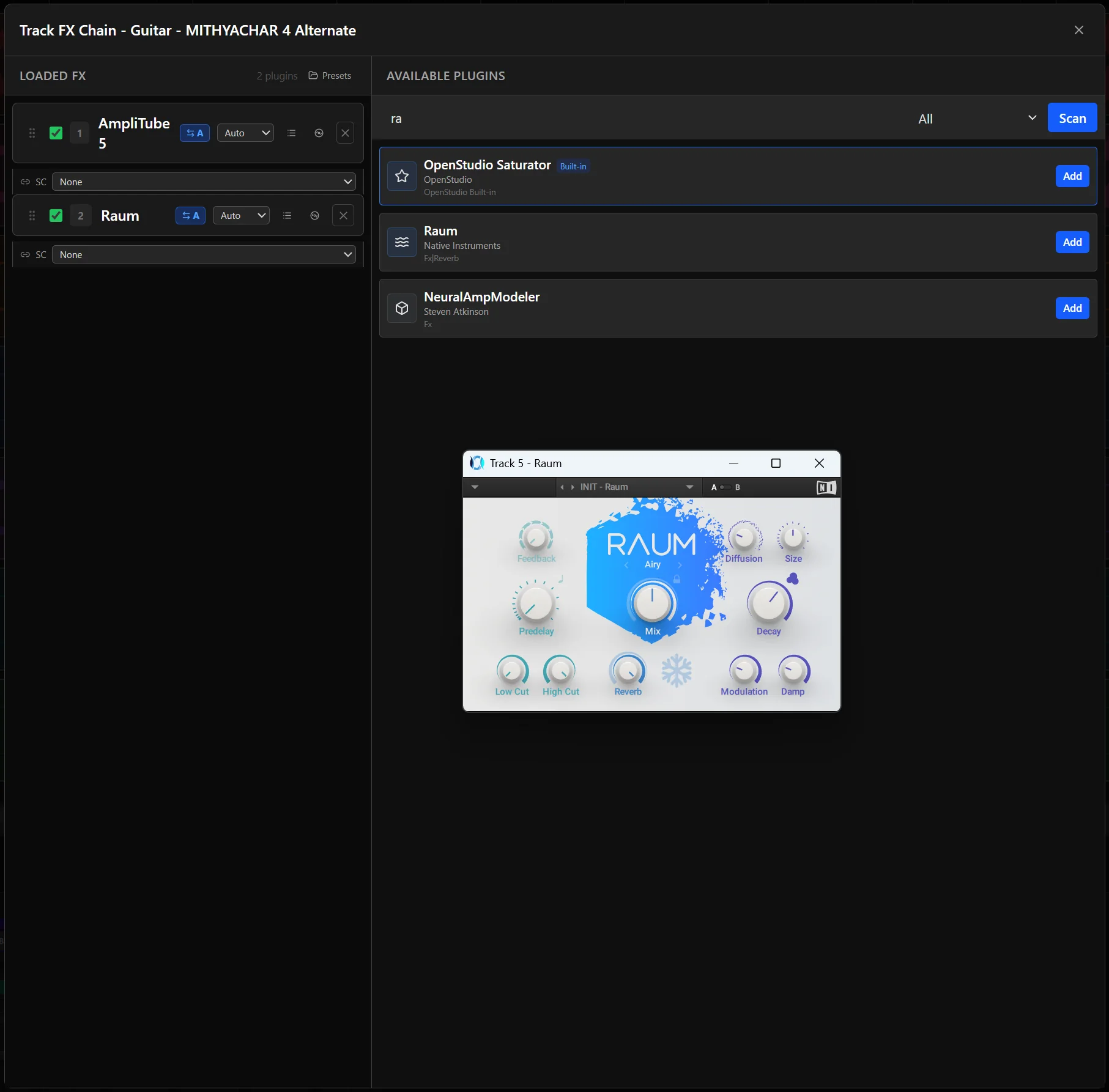
Adding a plugin, editors, presets, and A/B
- Open the FX Chain panel for the track.
- Click + or Add Plugin.
- Filter the list by name, manufacturer, or category and click the plugin.
- It is appended to the chain and its native editor window opens.
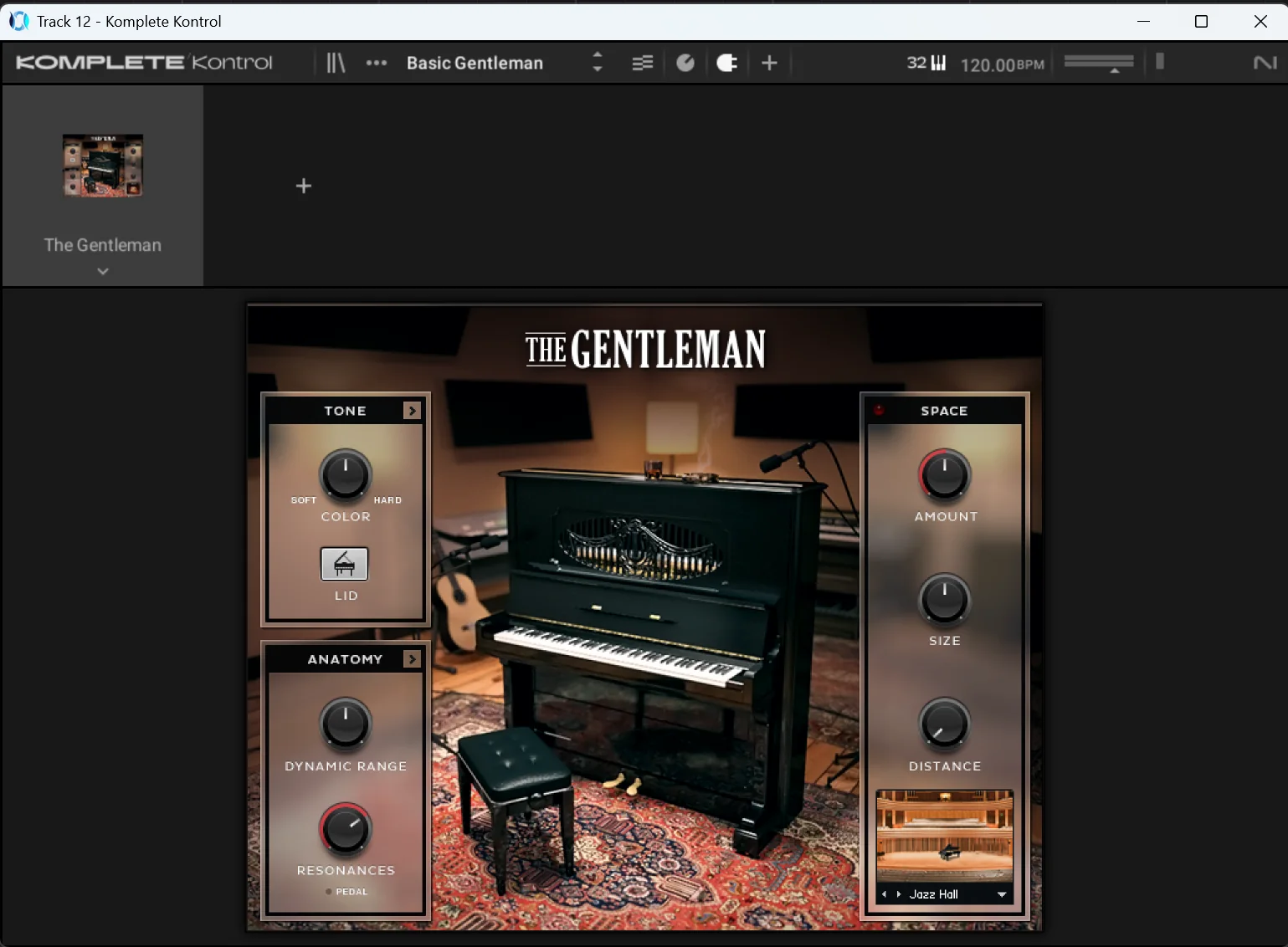
Native editors open in separate windows when provided. Parameters can also be changed from the FX Chain list, using buttons/choices for switches and enums. Eligible track, input, instrument, master and monitor FX parameters support envelopes; Show last touched reveals the last edited target. The October 6 development checkout adds stable JSFX slider IDs, dynamic CLAP metadata handling, ordered native capture and VST3/CLAP SDK sample-offset delivery where supported. Isolated VST3 transport preserves these offsets. A mode-dependent display name can refresh under the same SDK binding; changed IDs, normalized semantics or channel contracts require reload. GUI edits without SDK offsets use estimated native timestamps. Stop halts audio immediately and drains pending built-in editor writes before committing the pass; a stalled editor produces a warning after the bounded native wait. Vendor CLAP editor and macOS/Linux qualification remain pending. Track/input FX lists provide MIDI Learn for CCs. See Mixing & routing for Safe, Touch return, Cross-Over, Touch/Latch, realtime Trim and audible Preview/Capture.
In the October 6 development checkout, Punch Preview records auditioned audio/FX controls during playback until Stop or End Punch. Writing & AutoJoin provides write-to-start/end for controls already writing and can resume latched values at the previous stop point. Track sends also have separate Trim offsets and stopped coalescing policies. See Mixing & routing for the workflow and limits. Offline hosted state/prepare/reset calls now run on the actual UI thread, but the installed authorized AmpliTube still has an unresolved first-export discrepancy; parameter/state checks do not qualify its audio parity or every preset.
To save a preset, set the parameters, click the preset save icon in the FX Chain panel, and name it. Load one from the plugin's preset browser. Plugin state is also stored in the project. For VST3 plugins, A/B comparison gives you two independent slots: set up A, switch to B, adjust, and toggle between them to compare by ear.
Bypass, reordering, and safe mode
- FX Bypass on the track header bypasses the whole chain without removing anything. The FX button turns from green (active) to red (bypassed). Individual plugins bypass from inside the FX Chain panel.
- Drag a loaded FX row's grip handle onto another row in a track, input or master chain to reorder it; signal flows top to bottom. The order changes in native audio processing as well as the list. Focus the grip and press Up or Down to move an effect one position with the keyboard. Dropping outside or cancelling retains the order. Undo and Redo restore the processing order and envelopes remain attached to their plugin. Track/input MIDI Learn references follow reorder; removal Undo restores the saved mappings.
- File → Open Project (Safe Mode)… (
Ctrl+Shift+O) skips loading saved instruments and FX. Use a copy for diagnosis and avoid overwriting the original project from this mode.
The October 8 development checkout at b482852 uses grip handles for track, input and master chain reordering. Master envelopes follow persistent plugin identities through reorder, Undo and Redo. This describes development behavior, not a shipped-release claim.
32-bit bridge, ARA2, and sidechain
Sidechain routing into plugins is supported for plugins that take a sidechain input. For an ARA-capable plugin in a track FX chain, the app attempts to initialize ARA, attach the track’s audio clips, and open its editor. This depends on an ARA-enabled build and a compatible plugin; compatibility is not guaranteed for every ARA editor.
A bridge action exists internally, but there is no supported 32-bit hosting workflow. Install the 64-bit version of the plugin.
When a plugin will not show up or misbehaves
Plugin not in the list
- Confirm it is installed in one of the standard directories above.
- Open the FX Chain panel and click Scan again.
- Confirm it is a 64-bit plugin. VST3 is the reliable format; CLAP and LV2 depend on the plugin and the build.
- Check the plugin file is not corrupted, for example by reinstalling it.
Plugin crashes, hangs, or makes noise
- Open a copy in Safe Mode (
Ctrl+Shift+O) to skip loading saved instruments and FX. - Add plugins one at a time in the copy until the problem returns.
- Check the plugin's documentation for channel configuration requirements; some expect a specific layout.
- Update the plugin to its latest version.
- Remove the plugin from the chain and add it again to reset its state.
More symptoms, including audio dropouts caused by heavy plugins, are indexed in Troubleshooting.