
Rendering & export
Sources, bounds, formats, stems, the render queue, and project archiving.
Development PCM exports support 18-, 20- and 22-bit effective precision inside standard 24-bit files, with unused low bits zero. Primary, secondary and queued outputs preserve the choice. Quantization remains after final conversion even with Dither off; recording precision, float output and lossy quality are unchanged.
Rendering runs your project offline through the same playback and FX engine you hear during playback, and writes the result to disk. This page covers the Render dialog top to bottom, the queue and delivery tools, and the project-level export and cleanup commands. Shortcuts are from the default OpenStudio keyboard profile; Ctrl is Cmd on macOS.
The Render dialog
The October 6 development checkout gives hosted plugins an advancing offline playhead at the export sample rate, with tempo changes and integrated quarter-note position. Track Freeze uses the same project-time behavior, and neither moves the live playhead. Hosted state, prepare and reset callbacks are dispatched to the actual UI thread, as required by VST3, while audio rendering stays on its worker. Normal playback also integrates tempo changes for musical position. Live Preview/Punch and prepared AutoJoin holds are restored before export. These unshipped corrections do not establish every plugin's cold-start or sound-quality parity; the installed authorized AmpliTube first-export discrepancy remains under qualification.
Open it with File → Render… or Ctrl+Alt+R (macOS: Cmd+Ctrl+R). Work down the dialog: pick a source, set the bounds, choose where the file goes and what it is called, pick a format, then decide on processing and what happens afterwards. Add to Queue defers the job instead of rendering now.
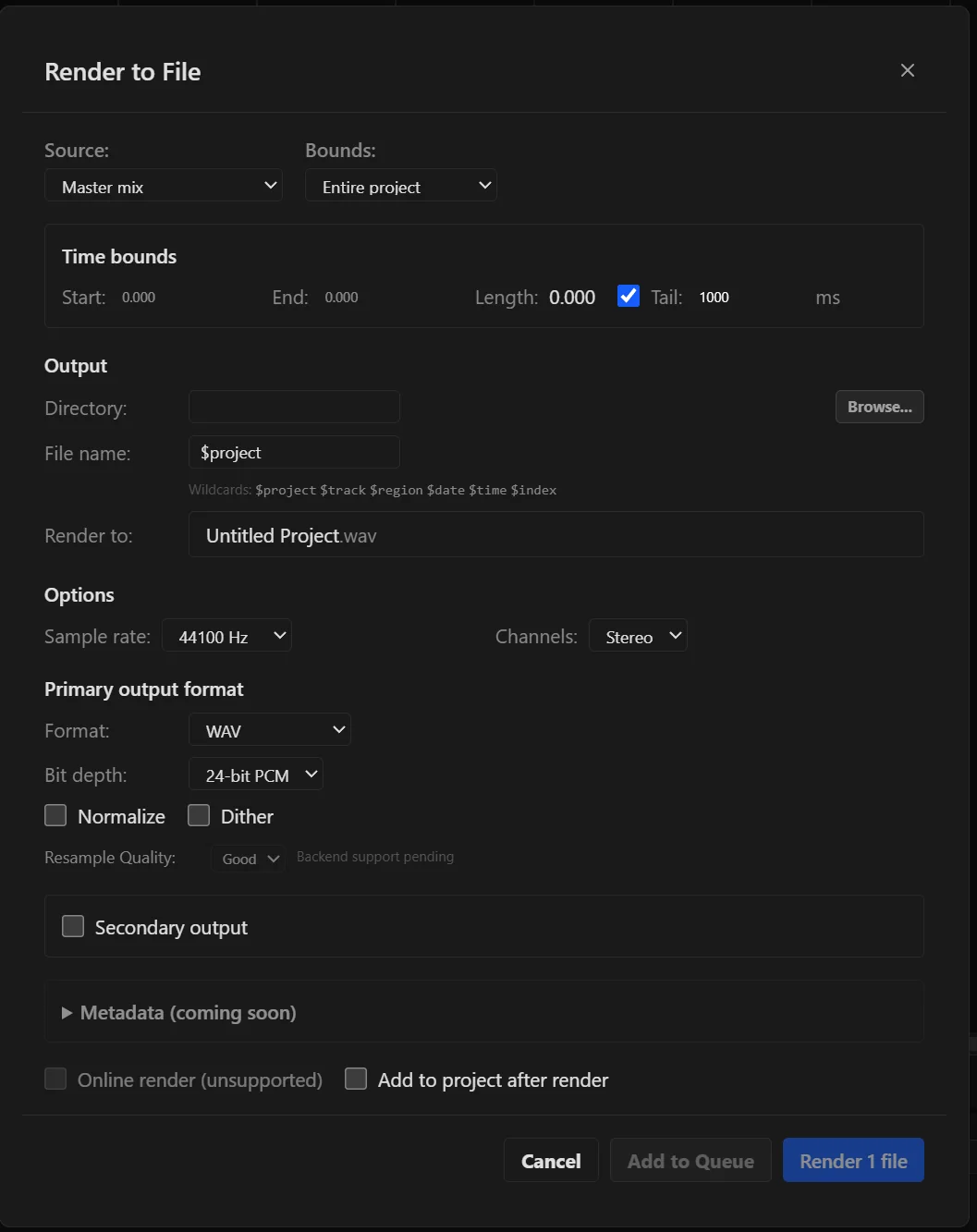
Source and bounds
| Source | Current status |
|---|---|
| Master mix | Full mix of all tracks through the master bus |
| Selected tracks (stems) | One file per selected track |
| Master mix + all stems | The master mix plus a stem for every track |
| Selected media items | Filters the source to selected audio clips |
| Selected items via master | Filters the source to selected audio clips |
| Razor edit areas | Each razor-area time range rendered as a separate stem from the track that owns it |
Selected-item sources filter the render to the selected audio clips. Select audio items first; the app rejects an empty audio selection. The via-master option includes master processing.
| Bounds | Range rendered |
|---|---|
| Entire project | Project start (0 seconds) to the last clip end |
| Custom range | Start and end times you enter |
| Time selection | The current time selection |
| Project regions | Each region as a separate file |
| Selected regions | Each selected region as a separate file |
Tail adds a number of milliseconds after the end time so reverb and delay tails are not cut off. An include-metronome option is available if you want the click in the file.
Output directory and file names
Browse to an output Directory, then type a File name. Wildcards are replaced per file, which matters for stem and region renders where one job writes many files.
| Wildcard | Replaced with |
|---|---|
$project | Project name |
$track | Track name (stem renders) |
$region | Region name (region renders) |
$date | Current date, YYYY-MM-DD |
$time | Current time, HH-MM-SS |
$index | Zero-padded sequential index |
Formats, sample rate, and channels
| Format | Notes |
|---|---|
| WAV | Uncompressed, with bit-depth selection; development also offers 18/20/22-bit precision in a 24-bit file |
| AIFF | Uncompressed, with bit-depth selection; development also offers 18/20/22-bit precision in a 24-bit file |
| FLAC | Lossless compressed: 16/24-bit integer; development also offers 18/20/22-bit precision in a 24-bit file |
| MP3 | FFmpeg-encoded at the selected bitrate |
| OGG Vorbis | FFmpeg-encoded at the selected quality |
MP3 and OGG use FFmpeg as a separate process. On Windows an audited FFmpeg runtime is bundled with the installer. On macOS and Linux OpenStudio uses a system ffmpeg on your PATH; if it is missing only the FFmpeg-backed operation fails, and WAV, AIFF, and FLAC still render.
Choose the Sample rate the file should have; the offline engine renders at that rate and converts source files as needed. Channels is stereo or mono.
Processing, secondary output, and post-render
| Option | What it does |
|---|---|
| Normalize | Peak-normalizes the output to 0 dBFS |
| Dither | Development checkout: flat TPDF, first/second-order shaped TPDF or lower-noise RPDF, applied once after mono conversion and final resampling. Shaping raises high-frequency noise; RPDF noise varies with the signal. Integer output only, including 18/20/22-bit effective precision in a 24-bit container; queue jobs retain the selected mode. These original quantizers are not proprietary IDR. |
| Secondary output | Runs a second pass in another format after each primary file, with its own bit depth or codec quality |
| Add to project after render | Imports the rendered files back into the project as new clips |
Resample Quality remains disabled because backend support is pending. Metadata entry and Online render are not offered by the current Render dialog.
Render in place and consolidate track are also available, alongside track freeze; see Mixing & routing for freeze.
Render queue, region matrix, and DDP
- Add to Queue in the Render dialog stores the job instead of running it. Open View → Render Queue to manage and batch-process queued jobs.
- File → Region Render Matrix… is a grid of tracks against regions. Choose the intersections to render and one output format for the batch.
- File → DDP Disc Image Export… packages a source WAV with project regions as CD track markers. Render a 44.1 kHz, 16-bit stereo WAV first; this dialog does not render the mix for you.
The region matrix, DDP export, and batch conversion have code and UI, but the project's own feature audit lists them as needing focused release smoke tests and hardware validation before strong claims are made. Check the output before sending it to a plant.
Archive, MIDI export, batch conversion, and cleanup
Live capture of the master output is not exposed as a supported command in the current File menu. Use Render for a mix file.
Import and export format support
| Direction | Formats |
|---|---|
| Import | WAV, AIFF, FLAC, MP3, OGG Vorbis, MIDI, and audio extracted from video where FFmpeg is available |
| Export | WAV, AIFF, FLAC, MP3, OGG Vorbis, MIDI, and DDP |
MP3/OGG export, video extraction, and other FFmpeg conversions need the bundled Windows runtime or a system ffmpeg on macOS and Linux. If a render comes out silent, check the bounds cover the clips, the source is what you meant, and no track or clip is muted; the full checklist is in Troubleshooting.